 Spectra
Spectra watches the network of your Windows computer, program by program, and shows where the data goes and from which country. When something is not right you act: block a program or an address with one click.
Windows 10 and 11, 64-bit · No .NET install needed · The free version works entirely on your computer
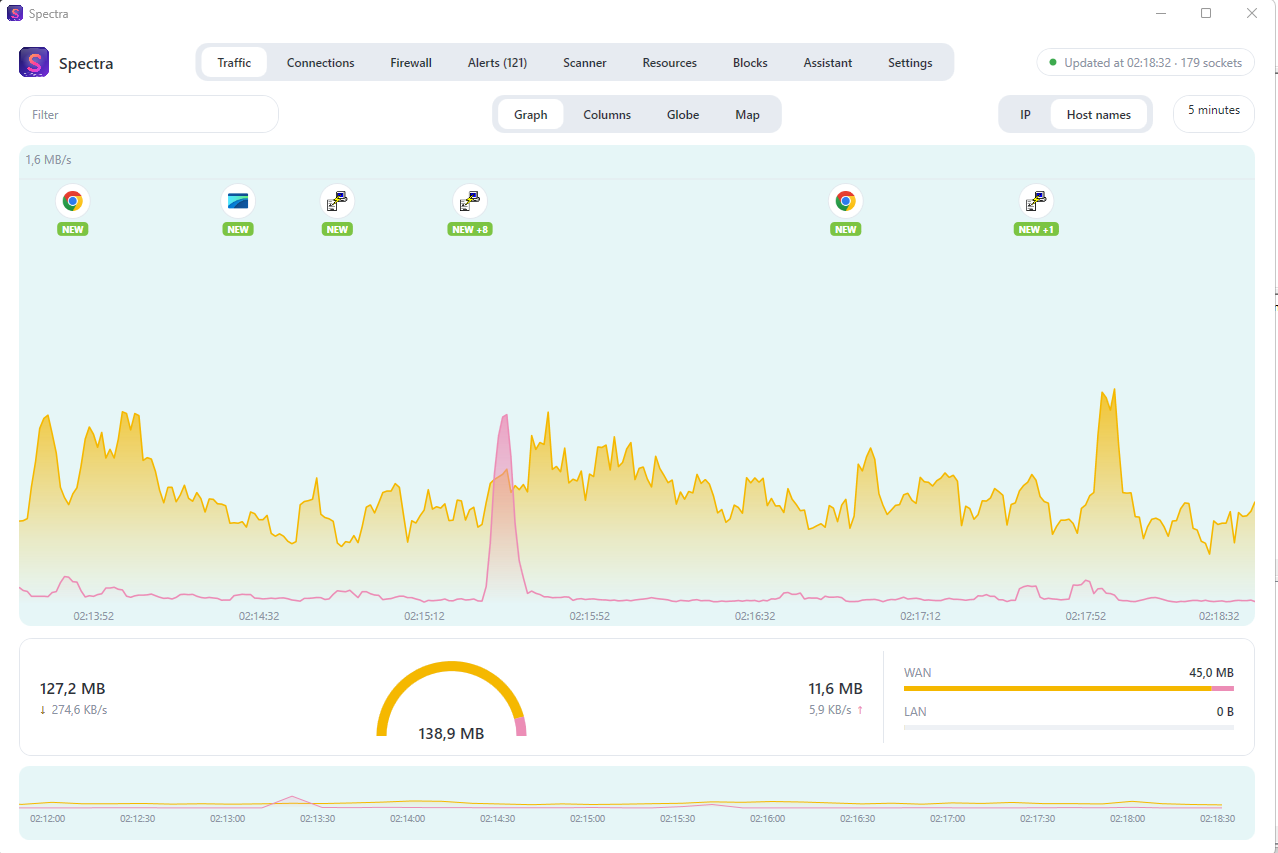
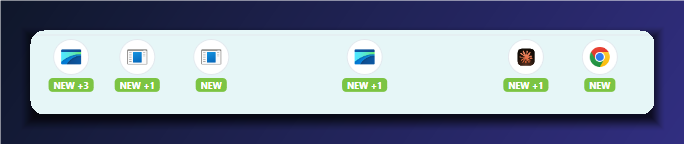
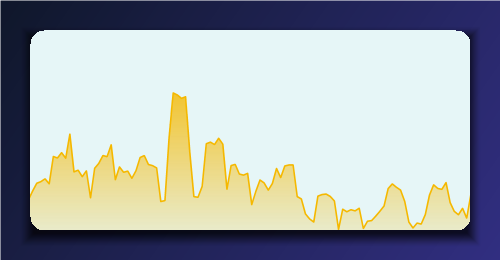
The graph draws download and upload as two curves over time. When a program connects to the network for the first time, its icon appears on the timeline with a NEW badge: you see the moment it started.
Spectra does not drown you in numbers. Each view answers one question: which program is talking, to whom, and how much. The data always covers the last five minutes, and you can open a longer history.
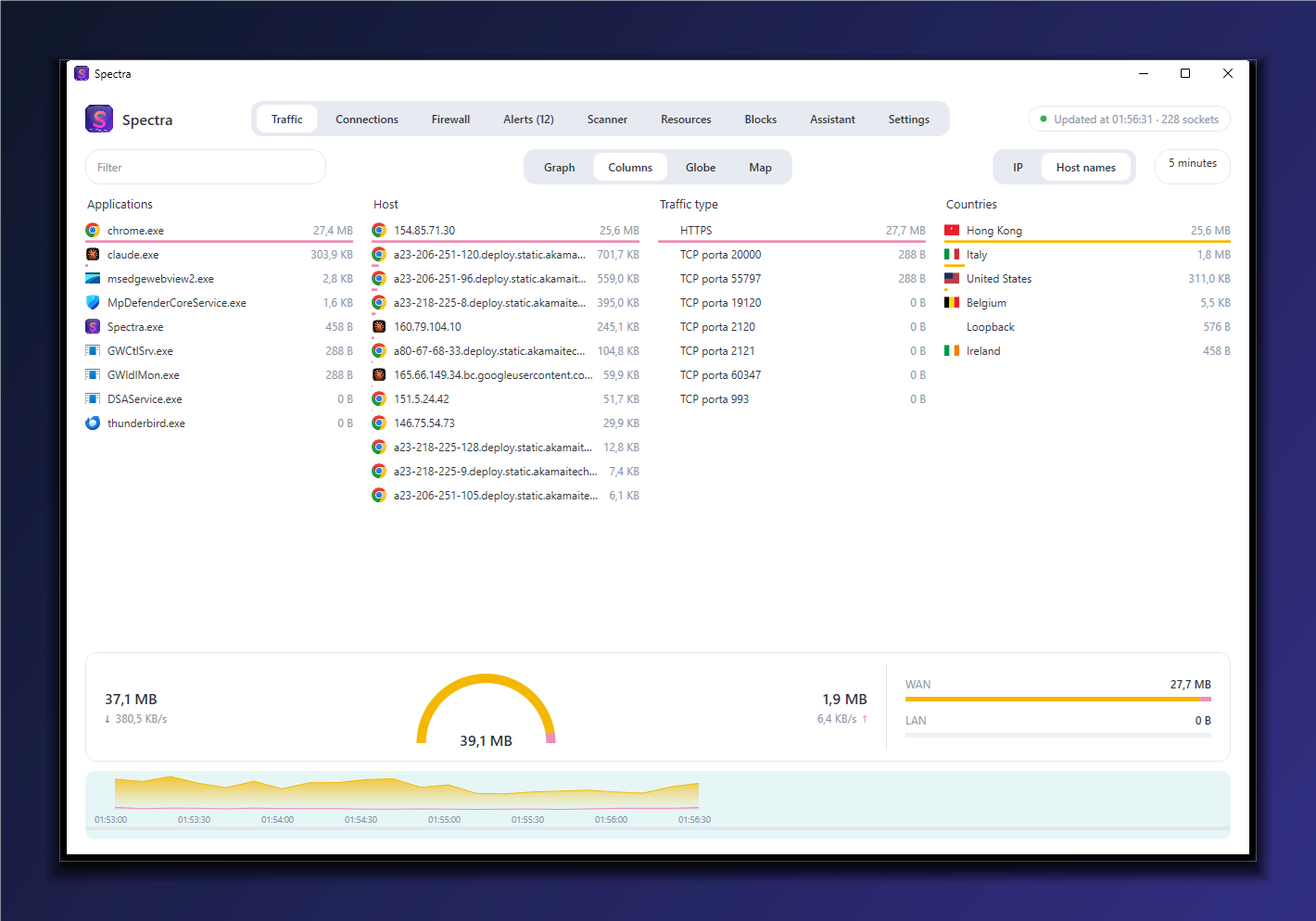
Four columns, one per question. Each row carries a bar, so the biggest talker stands out without reading a single number.
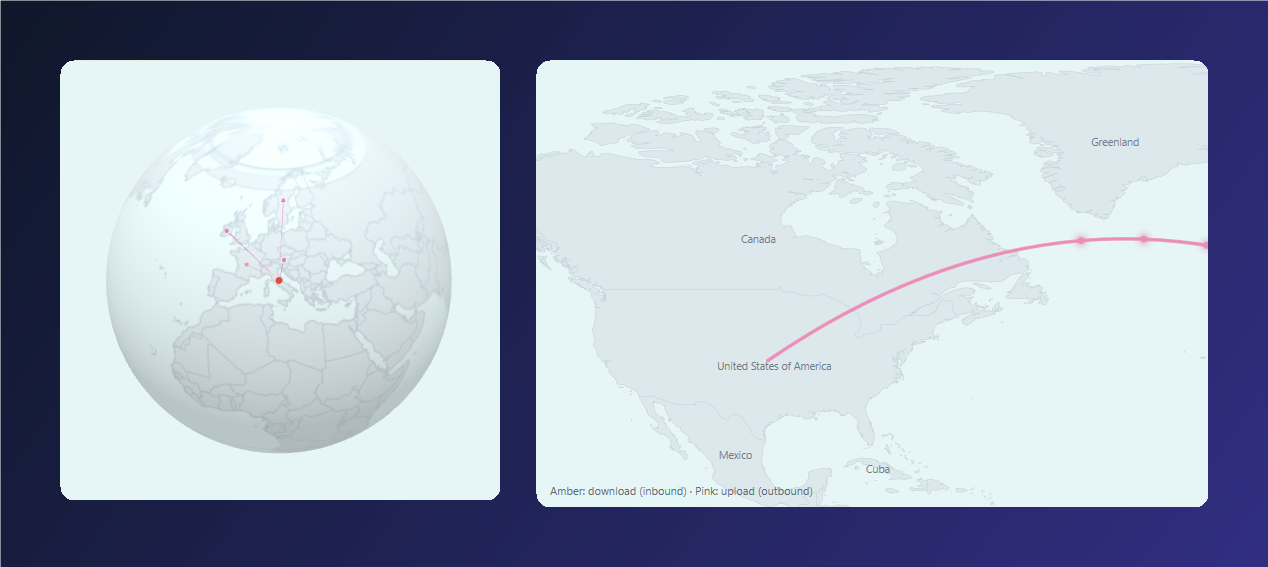
The same connections, shown two ways: on a 3D globe, and on a flat world map with your public address and the direction of each flow.
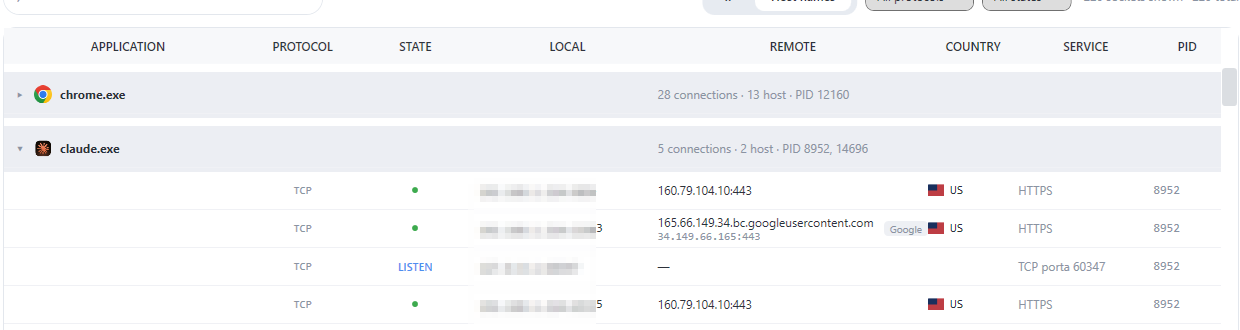
The connections tab lists each socket with the program that owns it, its local and remote address, and its state. Nothing is hidden behind a summary.
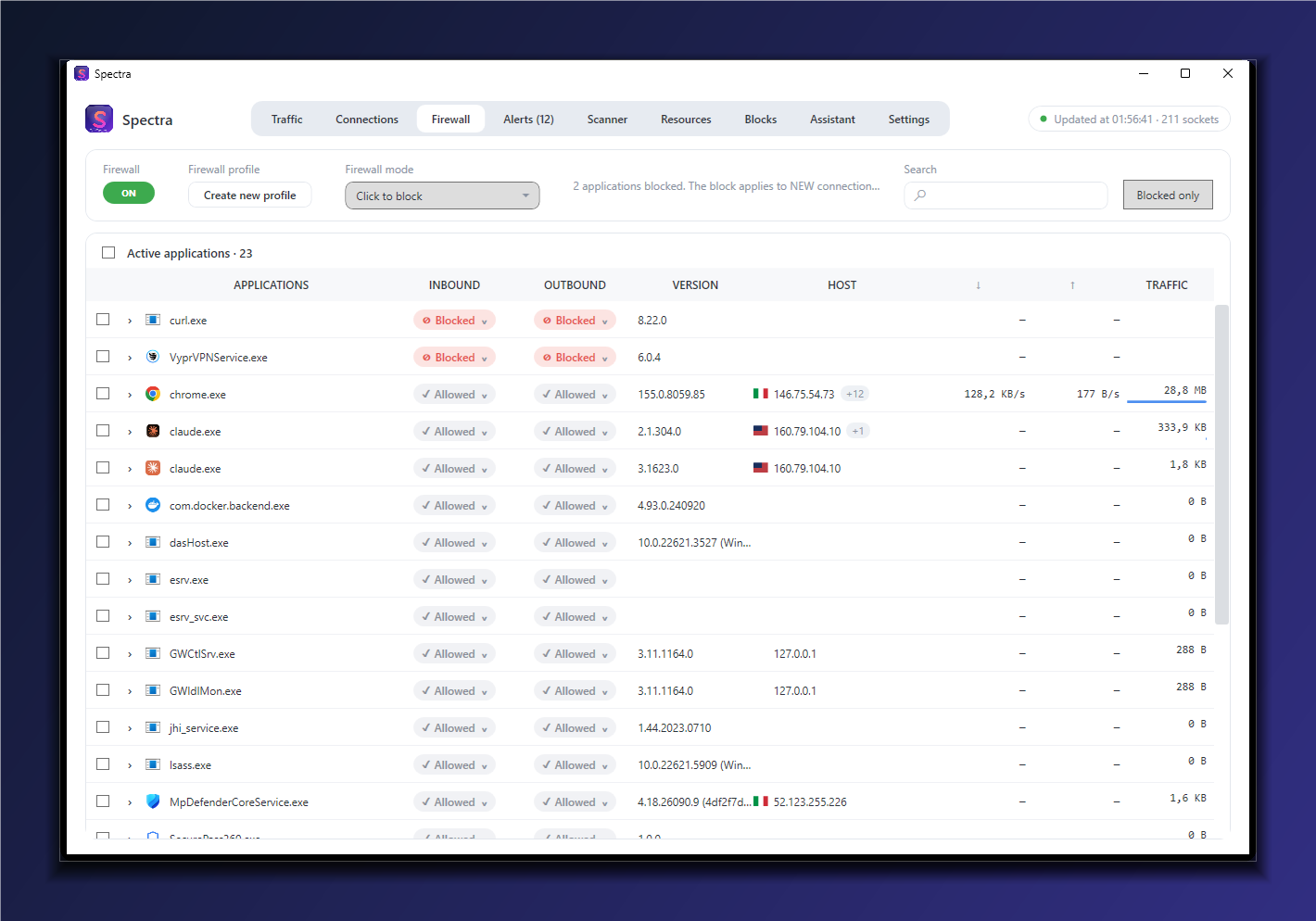
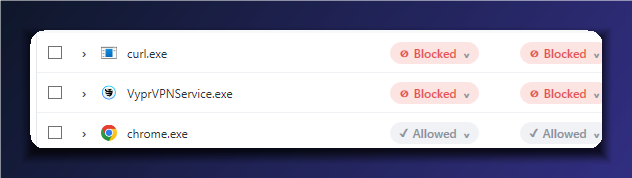
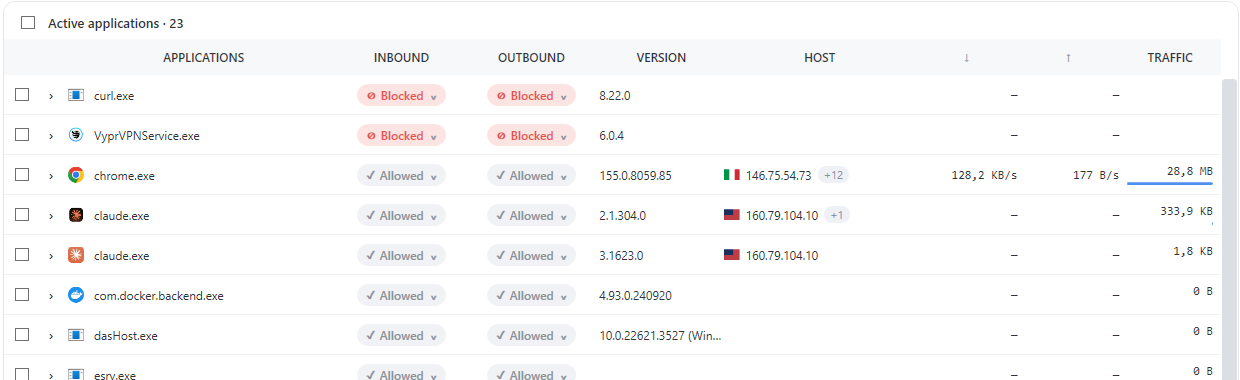
Blocking a program should be a decision you understand. Spectra's firewall shows, for each application, what it may receive and what it may send, and it applies the rules to the Windows firewall engine so they keep working when Spectra is closed.
The firewall lists every active application with its inbound and outbound status. Click to block, and the rule is saved and applied again at the next start.

The rest of the monitor keeps watch on the local network and on the computer itself. The assistant is the part that helps you understand what you see.
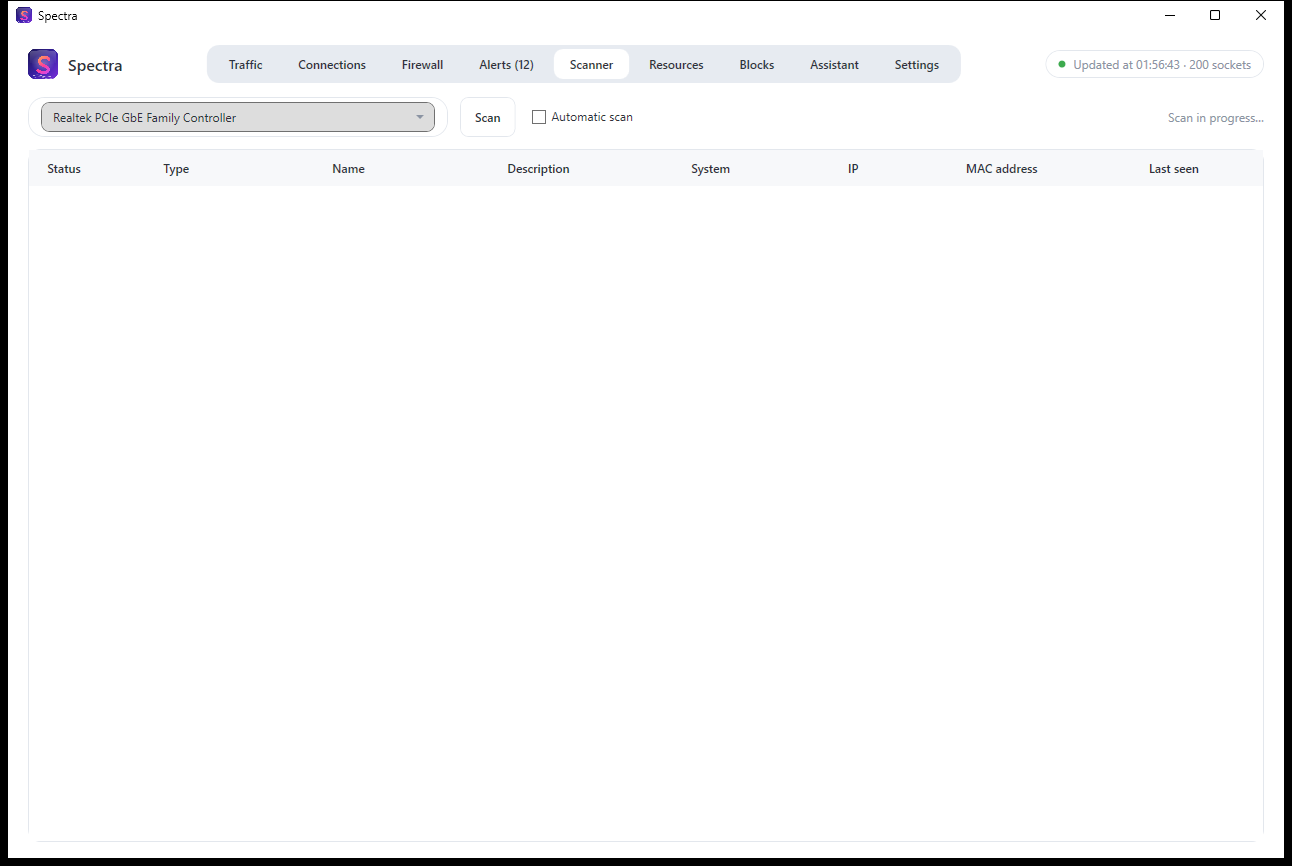
Spectra lists the devices of your network and classifies them: router, computer, printer, device with open services. A scan takes seconds and changes nothing on the network.
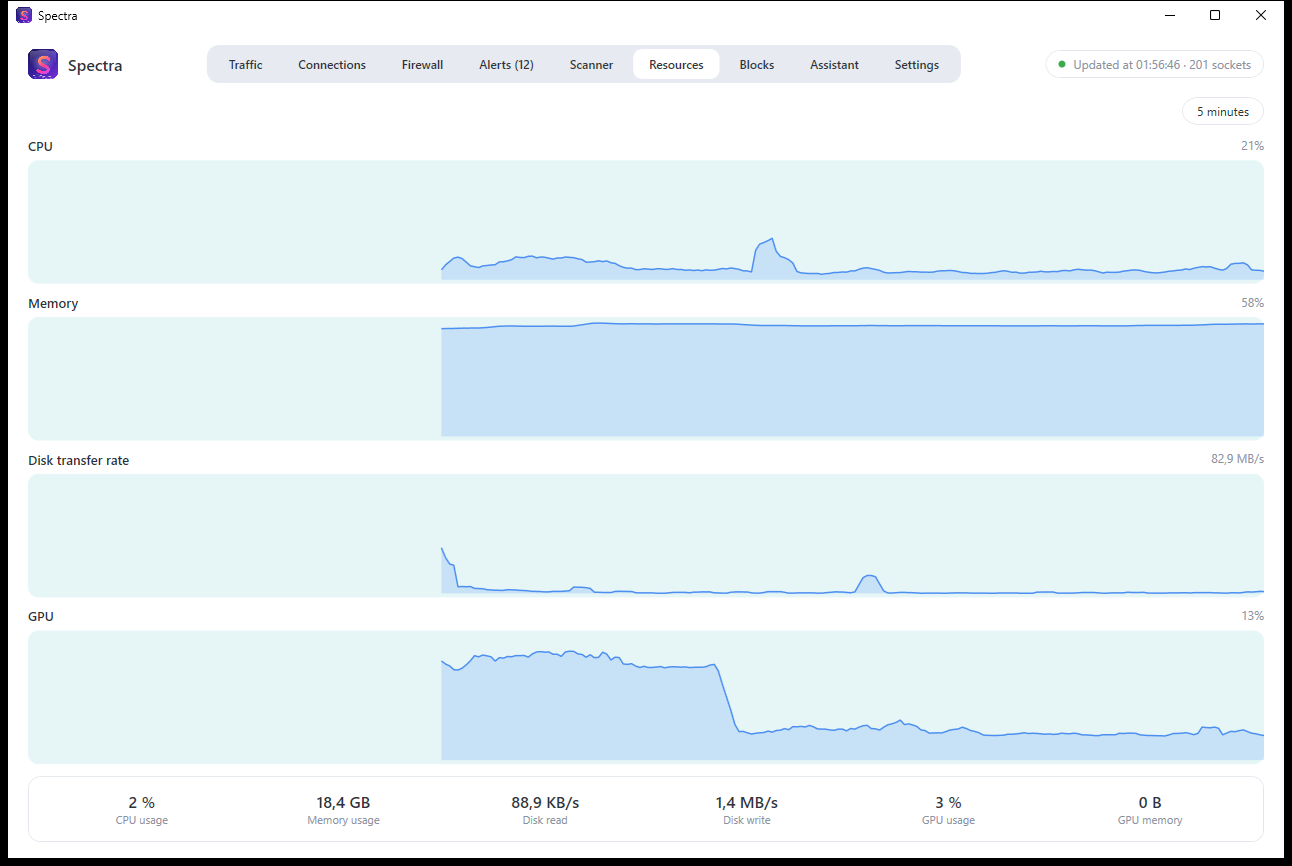
A view of the computer's own resources, next to the network, so you can tell a slow machine from a busy network.
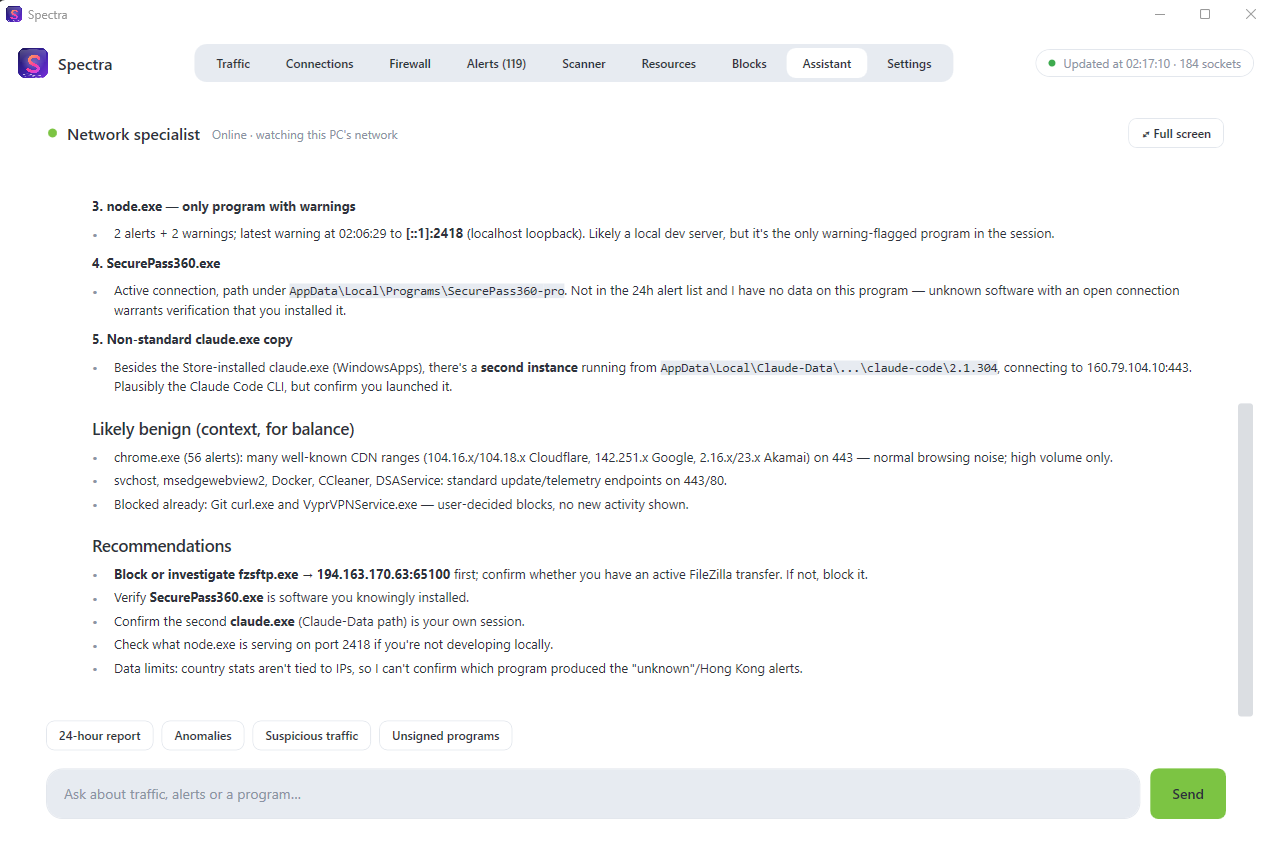
Ask in plain language: are there anomalies in this session, what is that program talking to, what should I check. The assistant reads the alerts, the programs, the connections and the blocks, and it advises. It never blocks anything: the decision stays with you.
Spectra is built to show you your network, not to collect it. Here is exactly what leaves the computer and what does not.
The free version is a complete monitor. Pro adds the firewall, the activity log and the assistant. There is no subscription: you pay once for each computer.
For as long as you want
Per computer. No subscription.
The same monitor in both versions. Pro adds the parts that act on the network and the parts that explain it.
| Feature | Free | Pro |
|---|---|---|
| Live traffic by application, host, service and country | ✓ | ✓ |
| Graph, 3D globe and map | ✓ | ✓ |
| Every connection with its process | ✓ | ✓ |
| Alerts and port-scan detection | ✓ | ✓ |
| Scanner of the local network and resources view | ✓ | ✓ |
| Firewall per application, inbound and outbound | — | ✓ |
| Blocks by address, range and domain | — | ✓ |
| Network security options | — | ✓ |
| Activity log with daily files | — | ✓ |
| AI assistant on your data (up to 300 questions a month) | — | ✓ |
| Price | USD 0 | USD 19.59 |
Yes. The free version monitors every connection live, with alerts, port-scan detection, the LAN scanner and the resources view. Pro adds the firewall, the activity log and the AI assistant.
The free version works entirely on your computer. The Pro assistant sends your question and a summary of the session to the MZGuard licence server, which forwards it to the AI model. The server does not store the conversation.
Yes. The byte counters and the firewall need them, so Spectra asks for them when it starts. Only one copy runs at a time.
One computer. The key is bound to the computer where it is activated. If you need to move it, contact us.
Pro keeps working offline for about two months after the last renewal. After that Spectra returns to the free version until the computer is back online.
Windows 10 and Windows 11, 64-bit. Spectra is self-contained: it does not need a separate .NET installation.
No. Pro is one payment for one computer. The licence renews itself in the background while the computer is online.
Download Spectra free, and unlock the firewall when you need it.
Requirements: Windows 10 or 11, 64-bit, administrator rights · Setup about 57 MB